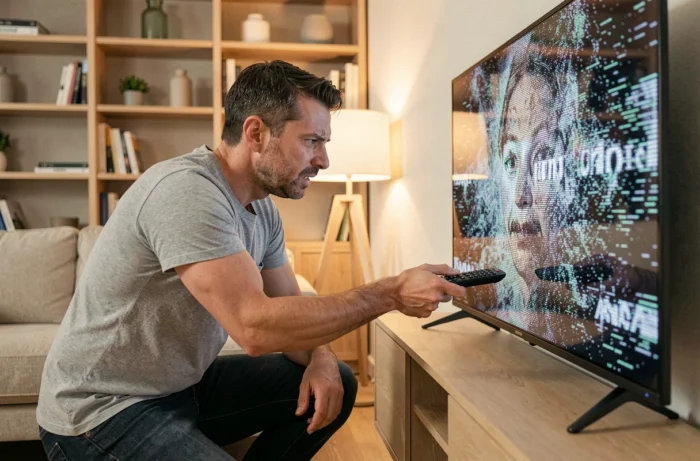
The image freezes, the screen flickers two or three times, then everything returns to normal. Until the next time. This flickering on Samsung TVs affects both recent and older models, and the cause is almost never where you might first imagine.
Integrated HDMI Diagnosis Samsung: the tool most users overlook
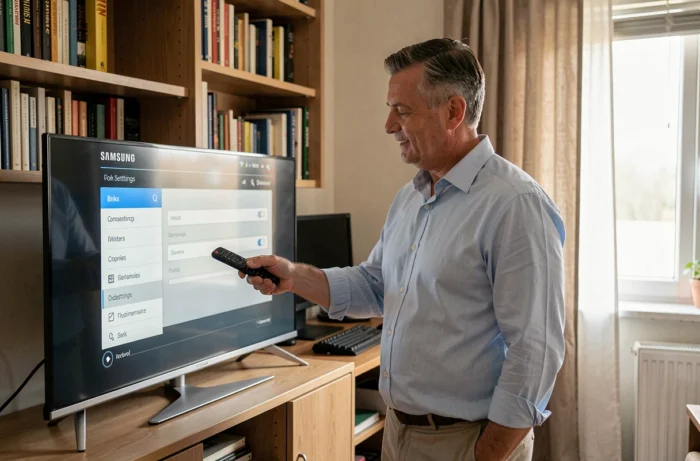
Before changing cables or dismantling anything, Samsung has integrated a diagnostic tool directly into the system. You will find it under Support > Device Care > Self Diagnosis > HDMI Troubleshooting. This menu tests the connection between the TV and the external source connected.
Why start there? Because the flickering often only concerns a single connected device (console, box, Blu-ray player). If the image is stable when using the TV’s built-in apps, the problem lies with the HDMI chain, not the screen itself.
This test saves you from buying a new HDMI cable for no reason. It identifies whether the issue comes from the port, the cable, or the source device. This is the first step to take, and it takes less than a minute. To go further with software manipulations, you can resolve the flickering on Samsung TV by following a complete protocol.
Flickering in game mode: the 4K, HDR, and VRR combination at fault
Have you noticed that flickering mainly occurs while gaming? It’s no coincidence. Simultaneous activation of 4K, HDR, and VRR causes instabilities on certain Samsung models, especially at high frequency.
VRR (Variable Refresh Rate) adjusts the screen’s refresh rate to that of the console. In theory, it’s a gain in fluidity. In practice, when the TV manages both HDR and VRR in 4K, micro-cuts in the image or flickering can occur.
Quick test to isolate the problem
Disable HDR in your console or TV settings. If the flickering disappears, it’s the HDR + VRR combination that is problematic. You can then test by disabling VRR alone to determine which of the two triggers the instability.
Keeping 4K active while temporarily disabling VRR remains the best compromise if you want a clear image without flickering. Some games handle this combination better than others, so the appropriate setting may vary depending on the title launched.
Checking the antenna signal from the Samsung menu
When flickering appears only on TV channels (not on Netflix or YouTube), the problem likely does not come from the TV. A weak digital signal produces exactly this type of disturbance.
Samsung allows you to check the reception quality from the Support > Device Care > Self Diagnosis > Signal Information menu. Two values matter:
- Signal level: if it is below 4, the reception is too weak for a stable image
- Signal-to-noise ratio: below 20, visual artifacts (including flickering) become frequent
- If these values are low, the problem lies with the antenna or coaxial cable, not the TV. Contact your TV provider for a network diagnosis
This menu prevents a classic mistake: resetting the TV or changing image settings when the issue comes from the incoming signal.
Complete power reset: the procedure that resolves most cases
A simple restart with the remote control is not always enough. A power reset goes further by draining the internal capacitors of the TV, which eliminates residual charge responsible for erratic behaviors.
Step-by-step procedure
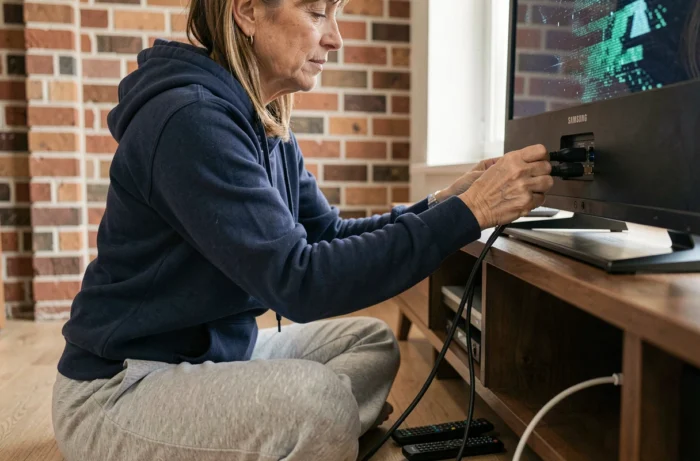
- Turn off the TV with the remote, then unplug the power cable from the wall socket (not just from the power strip)
- Wait at least a full minute. This delay allows the capacitors to discharge completely
- Press the physical power button on the TV (not the remote) for about ten seconds, with the device unplugged
- Plug it back in and turn it on normally
This procedure resolves most software-related flickering. If the problem persists after this step, the cause is likely hardware-related.
When the wall socket is at fault
An unstable power supply causes the same symptoms as an internal failure. Test the TV on another wall socket, avoiding low-quality power strips. A Samsung screen plugged into an overloaded power strip (with PC, box, console) receives fluctuating voltage that can trigger intermittent flickering.
Updating Samsung software and checking image settings
An outdated firmware may contain display bugs that have since been fixed. Go to Settings > Support > Software Update and start the search. If an update is available, install it and check if the flickering disappears after restarting.
On the image settings side, two adjustments deserve checking. The Eco mode (or ambient light sensor) automatically adjusts brightness, which can create a noticeable flickering effect in a room where light varies. Temporarily disable it to test.
The Movie mode or motion processing options (Motion Plus, judder reduction) add image processing that, on certain content, generates visual artifacts. Disabling motion processing often eliminates flickering related to software.
If after all these checks the screen continues to flicker, the problem is likely hardware-related: worn power board, aging LED backlight, or swollen capacitors. At this stage, a repair is necessary, as intervening on these components requires electronic skills and voids the manufacturer’s warranty.